

CollegeNET Step by Step Users Guide
CollegeNET is the application system Montana State University uses for all graduate student applications. The system allows applicants to select the specific degree and term they are pursuing and to submit department-specific application materials online (rather than mailing them to the university). Once the applicant applies, the application is accessible to the Department, the Graduate School, the Veterans Office (if applicable), and the Office of International Programs (if the applicant is international).
The portal enables seamless engagement and review of applicants and provides a secure pathway to receive official materials and process decisions. It is 100% secure and enables synchronous review of applicant materials for anyone with access (controlled by the Graduate School).
Getting Set Up
- Accessing Collegenet: The Graduate School will need to set up users to access the system; this is not done through the UIT department. Contact the Graduate School at gradschool@montana.edu to request access, providing your email address and Net ID. Once you receive access, log in using your NetID and password.
- Be sure you use Google Chrome or Firefox using one of the links below. The updated UI is great for reviewers, the Legacy view is good for administrators:
- For Legacy (pre-2022) Click on "Admit"; for the Updated UI, click on your department folder.
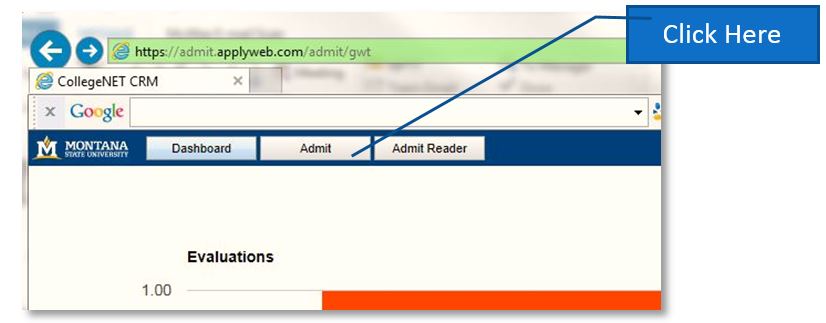
4. Open the file on the left for your program(s), this is your top "Parent" folder
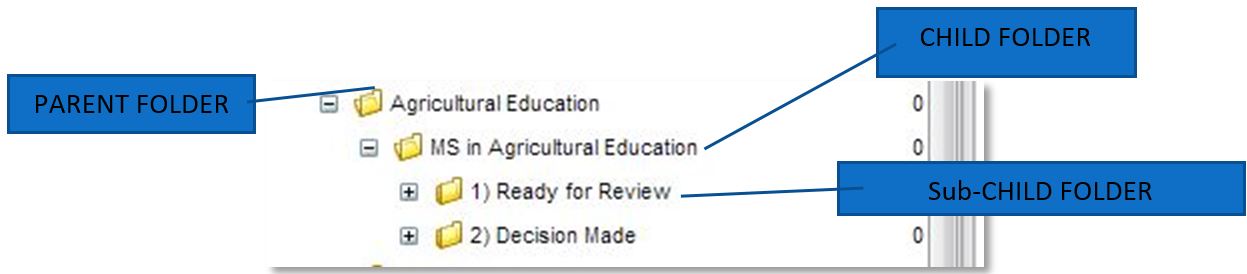
5. Within that folder, you will see additional folders, referred to as "sub-Parent Folders."
a. If you have more than one degree, you will have a folder representing every degree.
b. You can open a "Folder" by clicking on the "+" in front of the name.
c. Inside the folders are the "Child Folders"; Ready for Review, Program Decision, and Decision Made.
6. NOTE: You can use the "help" option in the upper right corner. Press on your name, and then select Help. Or watch the internal videos we created for the MSU campus.
APPLICATION FLOW
Applications come into CollegeNET and move directly into the department “Parent Folder”. In the Legacy example below (the Updated UI looks very similar). Applications move through the folder system with one copy staying in the Parent Folder and one would route directly into the “MS IN Ag Ed” (since there is one program in Ag Ed, there is only ONE sub-Parent Folder). If there were more program options, the application would filter directly into the specific sub-Parent folder.
- The application will REMAIN in the sub-Parent folder until it is complete. Please consider reviewing applications when they contain unofficial materials (and are labeled 'awaiting materials' in the checklist tab) as it will speed up the review and decision process. If admitted, the G.S. will chase the newly admitted student for missing official materials.
- To review an incomplete application, manually move the application to the "Ready
for Review" folder through the following process:
- Click the box to the left of the person's name.
- Drag the application into the folder.
- Change the 'checklist' tab from "Awaiting Materials" to "In Review & Awaiting Materials". This will inform applicants of the status of their application and reduce the number of calls and emails to the University.
- Know that when you manually move an application, a copy will remain in the previous folder. These copies are identical and are updated synchronously.
- If you want to have the 'copied' applications removed, let the gradschool@montana.edu know; we can step in and help clean up your folders.
- Letters of recommendation can be received into an application, before or after the application is submitted. These are secure and part of CollegeNET's built-in process. However, occasionally the University will receive an official Letter; you can manually upload this into the application (in the Uploads Materials Tab). Please watch the associated video on this process.
- If a department receives an official transcript, that can be placed into an application by uploading it along the same row in the Uploads Materials Tab. Please watch the associated video on this process.
- If an applicant submits all required and official materials, the application will automatically move to the next folder.
- Applicants can log in to their application portal at any time to view the status of their application. When an application is in review, the applicant portal is automatically marked "In Review" (or, as indicated above, "Awaiting Materials").
REVIEWING AN APPLICATION
- If your department would like automated emails sent to faculty/staff when an application is ready for review, please let gradschool@montana.edu know. We can initiate this process. This process can be configured for both cases: when an application automatically moves into a folder, or when a department assigns the application to particular reviewers.
- If you are a reviewer, you may only have access to one folder, the “Ready for Review”.
This is the only folder in which an applicant can be reviewed. The images below are
from the view through Legacy, but are very similar to the updated UI.
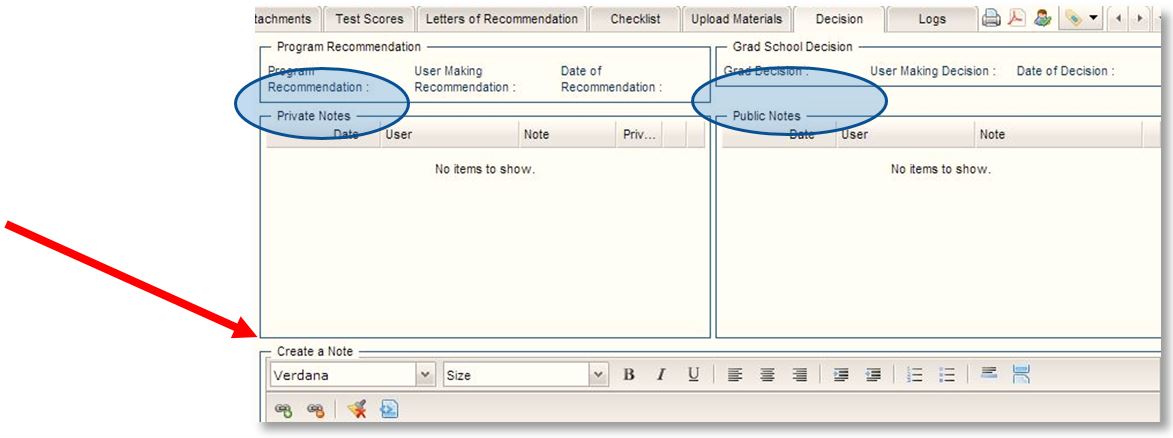
- If need be, write a private/public note (the applicant cannot see these notes)
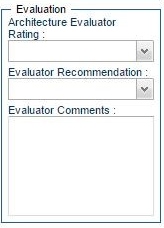
- Evaluate the applicant with a 1-10 scoring system. (If a department needs this scale
changed, contact The Graduate School.) Evaluation scores are automatically added and
can be seen in the Program Decision pool.
- If need be, write a private/public note (the applicant cannot see these notes)
MAKING A DECISION
- Once all reviews are complete, the application will automatically move to the “Program Decision” folder. However, a department can manually move the applications into the Program Decision folder at any time to override this process, especially if a program knows they want to immediately admit or deny an applicant.
- You can request to receive an email prompt for applications that fall into the "Program Decision" folder. Contact the gradschool@montana.edu if you would like this option.
- Some departments may skip the #1 step and manually move the application directly to the "Program Decision" Folder. Either way, know that this is the ONLY folder in which a decision can be made.
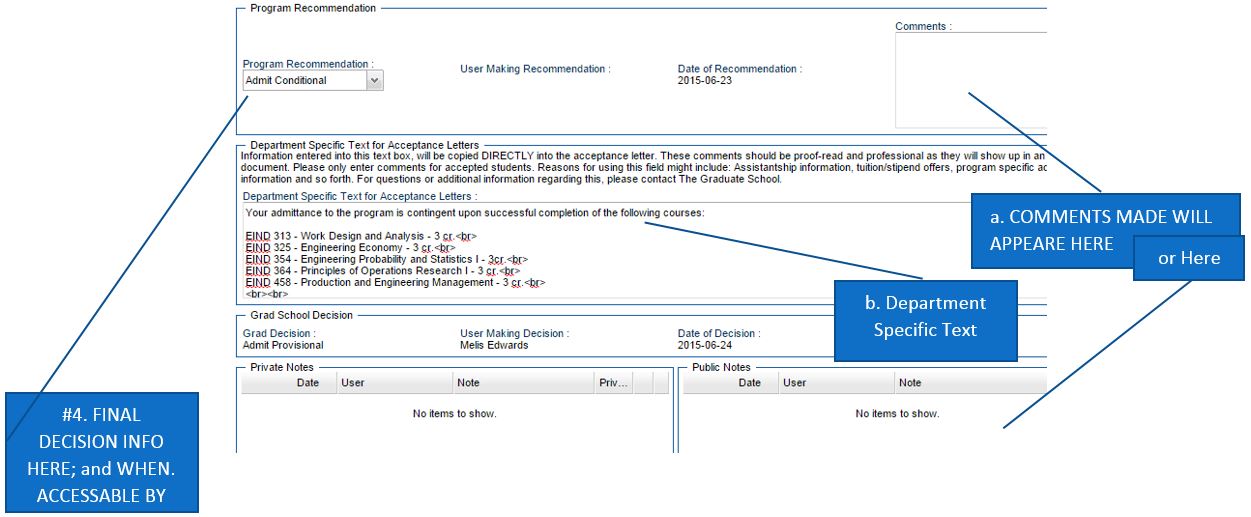
- Decisions are made only in the "Program Decision" folder:
- Comments can be made in the public notes... if you include comments in the Public Notes - this is additional information for the Graduate School. This spot is not intended for information delivered directly to the applicant. If you want to provide information directly to the applicant, use the Department Specific Text Box.
- Department-specific text: This is an area for a department to communicate directly
with an admitted or denied applicant. It will appear on the offer letter exactly as
written into this area. Please use this as much as possible, as it helps both the
admitted and the denied applicants. This is also where specific provisions can be
written.
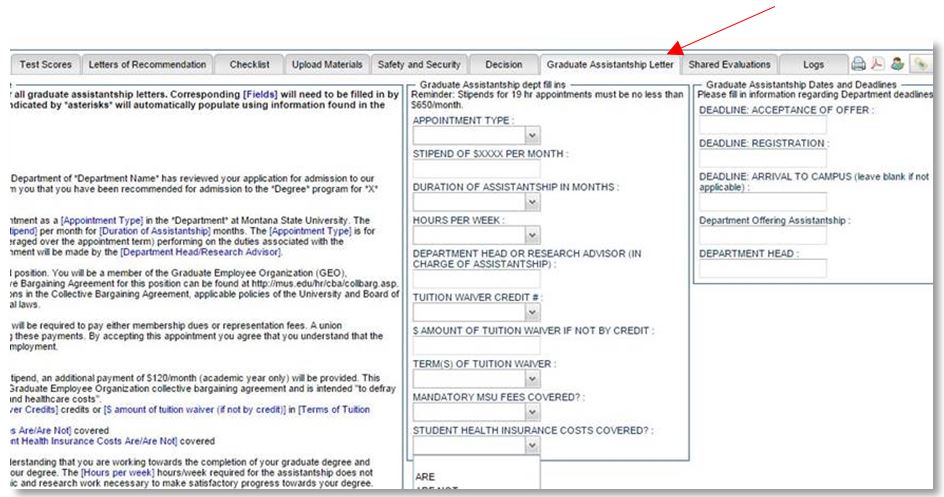
- GTA/GRA: If a student will receive a GTA or a GRA, please complete the tab Graduate
Assistantship. This information will merge onto the final offer letter for the newly
admitted student.
- Once a decision is made, the applicant's file will automatically route to The Graduate School's files and automatically move to the “Decision Made” folder.
- Once the Grad School issues the decision letter, the applicant will be emailed with instructions to check their portal for the decision.
- The applicant will review their letter in the CollegeNET application portal and either accept or decline the offer there. Applicants are not mailed any paper materials, letters, or admission packets from the Grad School (see the final section under APPLICANT LETTERS).
- Admitted applicants receive a link in their offer letters to this page on The Grad School website: New Graduate Student Information. This will outline their next steps for registration, lifting holds, orientation, and more.
- If a department would like to offer funding AFTER an initial offer of admission has
been delivered months/weeks earlier, then they should:
- Write the letter using the assistantship template as above
- Send the letter via email to the student, cc'd the G.S. and the Office of International Programs (if an international student).
- Load the letter into a spot in the 'Upload Materias' Tab, where we indicate "Department Specific Funds."
- Applications will stay in the department folders until The Graduate School proceeds with a process referred to as “Archiving.” Archiving is typically done these times each term: Fall apps at the middle or end of October; Spring by Feb 15, Summer by July 1. The Grad School will send reminders to departments to download all application information as PDFs if they want to keep electronic records. The Grad School will always have a copy of the student’s records.