

CatChat Claude Desktop Integration
CatChat is capable of replacing your Claude Models with its own, ensuring even when you are using the Claude Desktop application you are able to still run on MSUs models.
Application Setup
- Ensure that you have the Claude desktop application on the device you want to use.
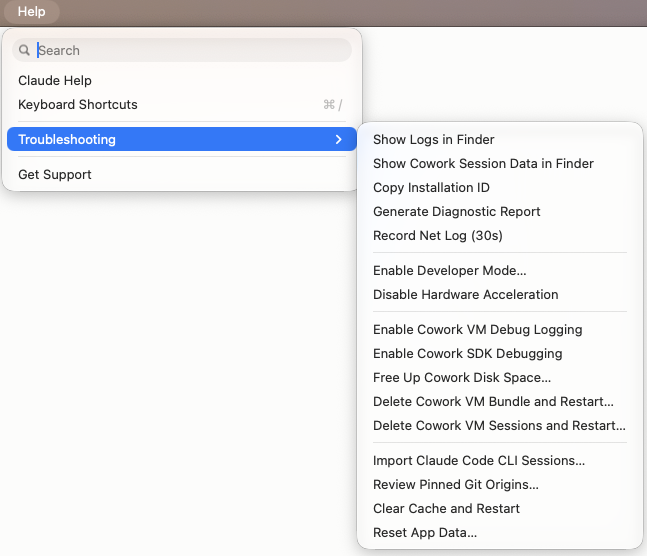
- Navigate to your application bar and find the "Help" tab, and select "Troubleshooting",
then "Enable Developer Mode..." Enabling this will allow you to add our gateway. Your
claude app will need to restart after this.
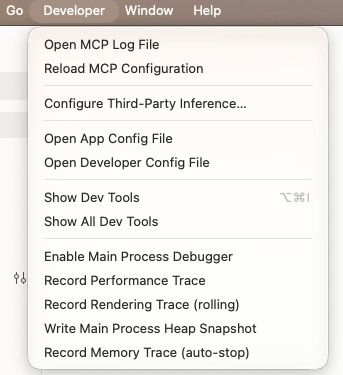
- Once Developer Mode is enabled. You will see it as an option in your application bar.
If you click on Developer, you will see an option to "Configure Third-Party Inference..."
Click on that, and it will open up a new window.
- When the window opens you will see several configuration options, and we only need
to set a few. First you will set the "Credential Kind" to 'Static API Key'. Then you
will set "Gateway base URL" to 'https://catchat-api.msu.montana.edu/'.
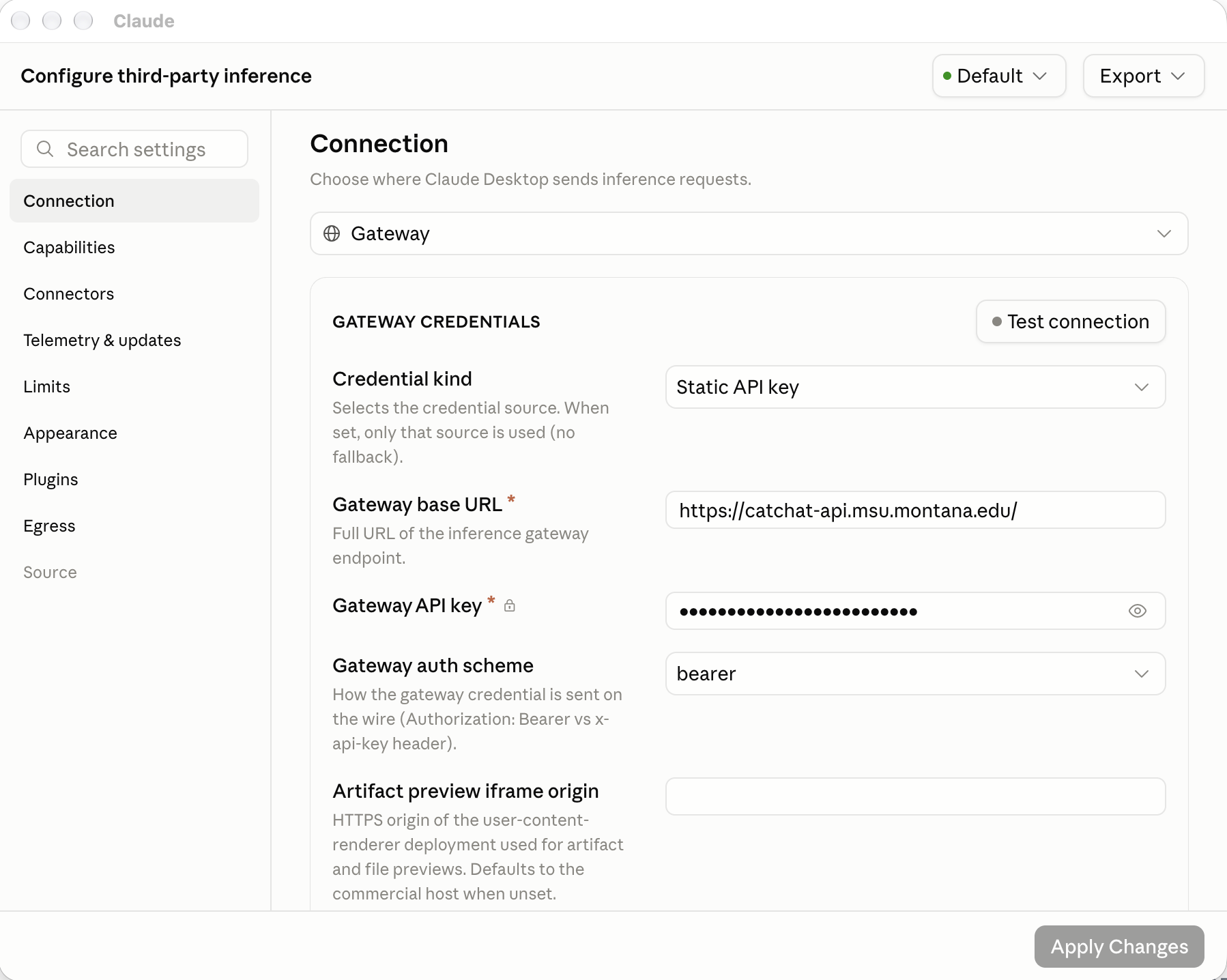
- After that you need to go to CatChat Access where you will Login with your MSU Account, navigate to API Keys and click "+ Free
Key" to generate a key. You will go back to your Claude app, and put that key into
the "Gateway API key" field. When that is populated, you can click the "Test Connection"
button in the top right hand corner, and make sure that your configuration is working.
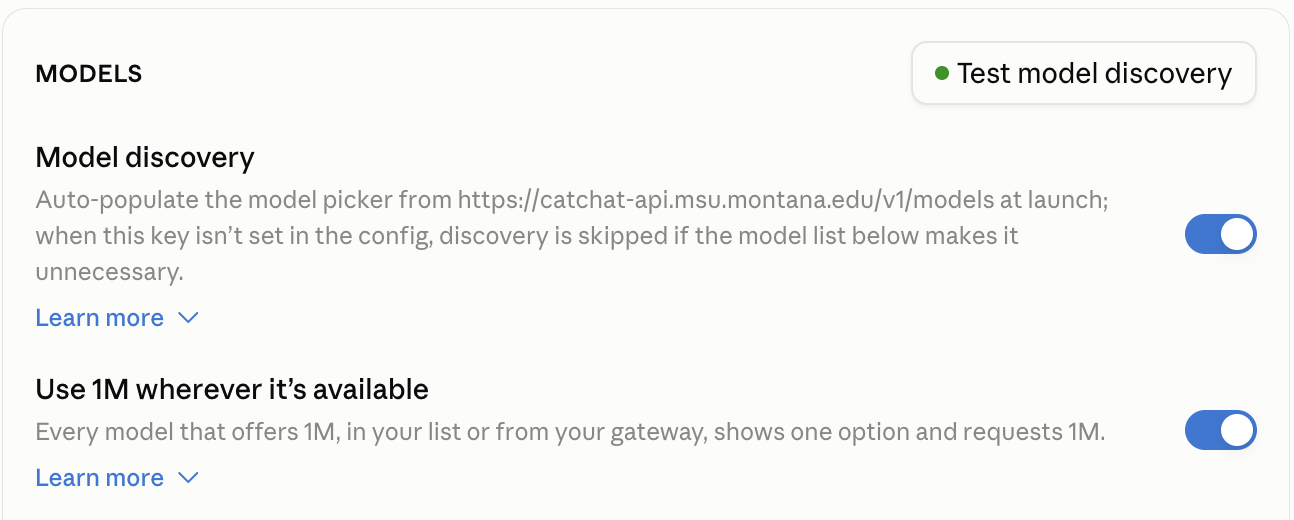
- After your connection has been established, scroll down to the "Models" section, Where
you will turn on "Use 1M wherever its available" After that click "Apply Changes"
this will have your claude application restart to pick up the changes, and after that
you will be chatting with the CatChat Models. The model aliases are shown in the table
below as well.
Model Alias Chart
| Claude Model | CatChat Model |
| claude-opus-4 | qwen3.8-27b |
| claude-haiku-4.5 | gemma4-31b |
| claude-haiku-3.5 | gpt-oss:120b |