

How to Enable a Grading Scheme in Canvas
Add or Update a Course Grading Scheme
A grading scheme controls how Canvas converts scores into letter grades. If the grading scheme you need is not already available at the account level, you can create one for your course.
Note: A grading scheme will not apply to student grades until it is enabled in the course settings.
Open Course Settings
-
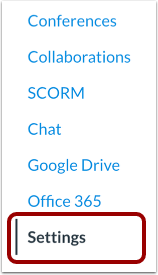
In the course navigation menu, select Settings.
-
Select the Course Details tab.

-
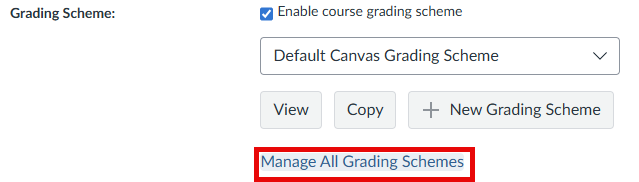
Select the Enable course grading scheme checkbox.
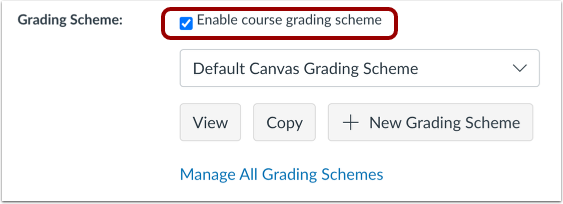
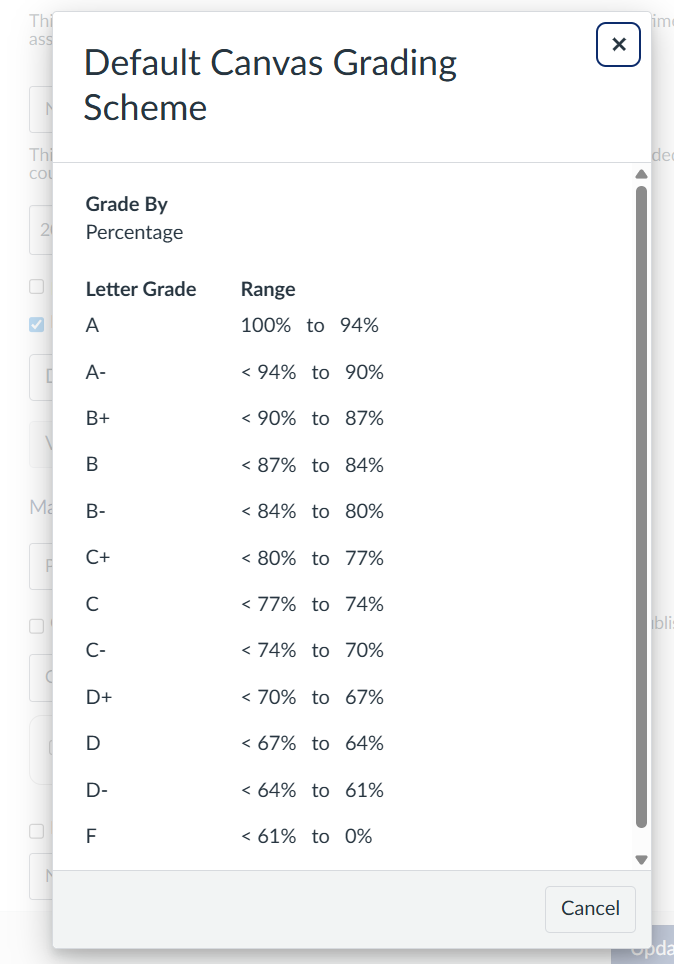
Tip: Enabling this option may apply a default Canvas grading scale. Select View to review the scheme and confirm that it matches your course grading policy.
Create a New Grading Scheme
If the default grading scheme does not match your course, create a new one.
-
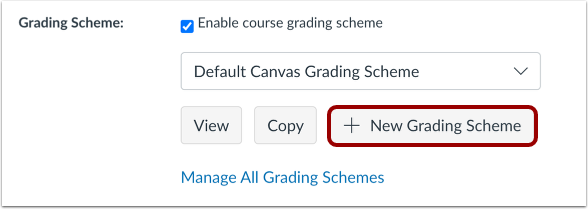
Select + New Grading Scheme.
-
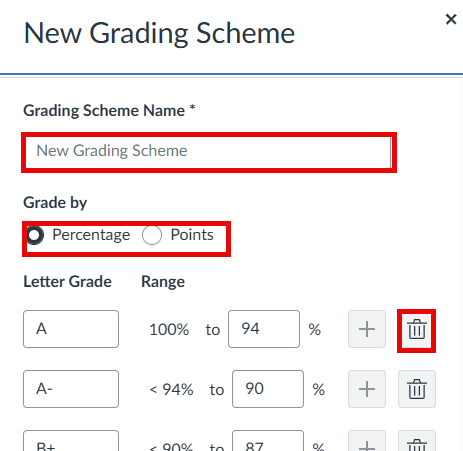
Enter a name for the grading scheme in the Grading Scheme Name field.
-
Choose whether the scheme should use percentages or points.
-
Update the grade names and minimum values for each range.
-
Add or remove ranges as needed.
-
When the grading scheme is complete, select Save.
Important: The grading scheme must cover the full range from 100% to 0%. If you are using points, it must also cover the full range from 100 to 0.
Manage Existing Grading Schemes
After a grading scheme has been created, you can manage it from the course grading scheme area.
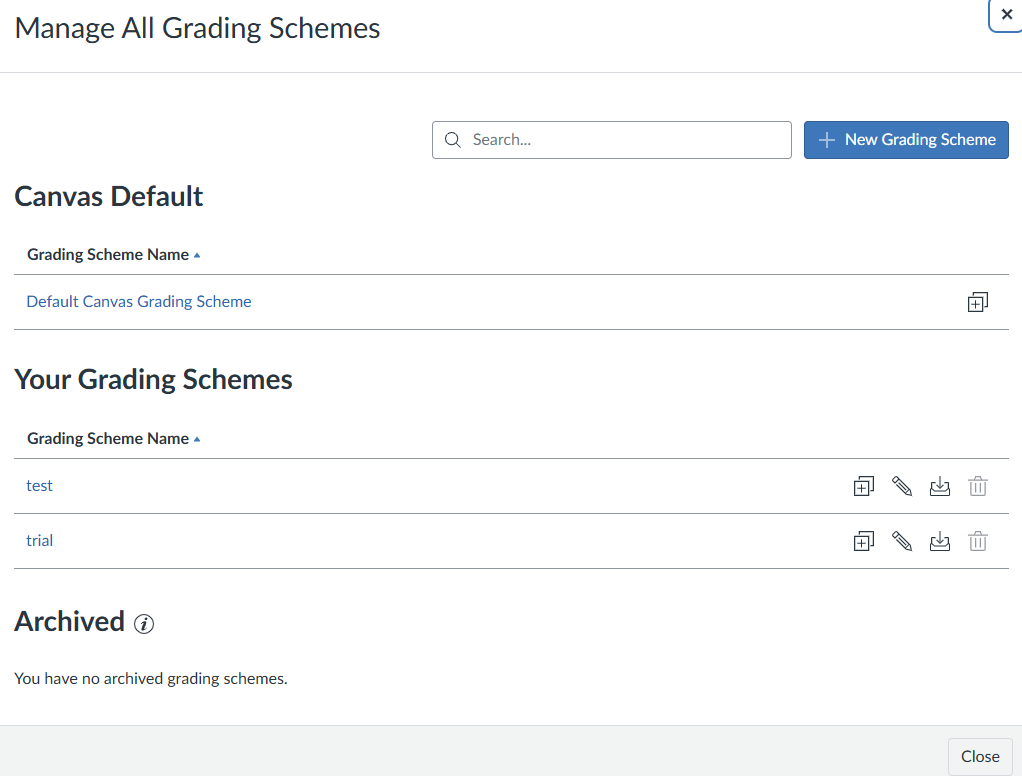
Canvas shows the grading scheme currently enabled in the course, if one is active. To view all available course-level grading schemes, select Manage All Grading Schemes.
From the grading scheme list, you can duplicate, edit, archive, or delete a grading scheme.
Best Practices
-
Review your syllabus grading scale before creating or editing a Canvas grading scheme.
-
Make sure the minimum values for each range do not leave gaps.
-
Use clear grading scheme names so they are easy to identify later.
-
Confirm the correct grading scheme is enabled before final grades are calculated.