

Create Accessible Word Documents for Canvas
Before You Use a Word Document:
When possible, build content directly in Canvas (e.g., on a Canvas page)—it’s often easier for students to navigate than a downloaded file. If you need to use a Word document, follow the tips below to create files that are accessible for all students.
Create an Accessible Word Document
To create or remediate your Word document:
- Use built-in heading styles to organize content.
- Choose legible fonts, such as Arial or Calibri, in at least 12-point font.
- Use strong color contrast between text and background.
- Add alternative (alt) text to images, charts, and graphics.
- Use built-in lists and table tools—avoid manual formatting.
- Use descriptive link text instead of “click here.”
- Avoid using color alone to communicate meaning.
Check Accessibility Before (and After) Uploading
Before Uploading to Canvas
Use the accessibility checker in Microsoft Word to identify and fix issues such as:
- Improper heading structure
- Images without alt text
- Table formatting issues
- Low color contrast
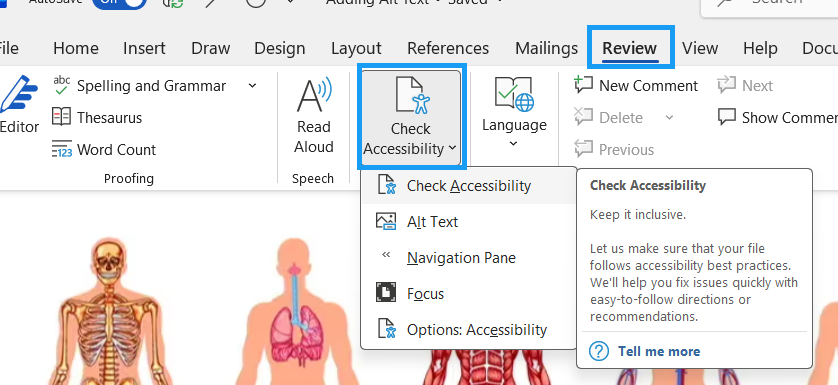
To check accessibility in Word:
- Open your document in Microsoft Word.
- Select the Review tab.
- Select Check Accessibility.
- Review the results panel and make suggested changes.
After Uploading to Canvas
If your document is already in Canvas, use YuJa Panorama to:
- View accessibility issues
- Identify missing alt text or improper structure
- Enable alternative formats for students
Note: It is usually faster to fix accessibility issues in the original Word document and re-upload the file than to remediate it after uploading.
How to Include Word Documents in Canvas
- Use descriptive file names when uploading documents.
- Organize documents within modules.
- Check links to ensure they work correctly.
- Refer to “How do I upload a document in the Rich Content Editor?” to add files to Canvas.
- Whenever possible, share the original accessible Word document or provide content directly in Canvas instead of converting it to PDF.
- If a PDF version is necessary, use Save As PDF or Export to PDF (not Print to PDF) to better preserve headings, reading order, hyperlinks, and document structure.
- After exporting, review the PDF for accessibility, as exporting alone does not guarantee the PDF is fully accessible.
Need Help?
- Email University Information Technology (UIT) for Microsoft and Adobe accessibility tools
- Visit the Center for Faculty Excellence (CFE) Webpage for guidance on developing accessible course materials and professional development for inclusive teaching and learning
- Email the ECAT Team in Academic Technology and Outreach (ATO) for assistance with accessibility in Canvas using YuJa Panorama