

Create Accessible PowerPoints for Canvas
Before You Use a PowerPoint Presentation:
When possible, share your content directly in Canvas. It is often easier for students to navigate Canvas than a downloaded PowerPoint presentation. If you need to use a PowerPoint presentation, use the tips below to create slides that are accessible for all students.
Create an Accessible PowerPoint
To create or remediate your PowerPoint presentation:
- Use built-in slide templates to organize content.
- Give every slide a unique title.
- Use legible fonts and strong color contrast.
- Add alternative (alt) text to images, charts, and graphics.
- Use descriptive link text instead of “click here.”
- Avoid using color alone to communicate meaning.
- Make slides simple and uncluttered.
- Include captions or transcripts for video and audio media.
Check Accessibility Before Uploading
Use the accessibility checker in PowerPoint to identify and fix issues such as:
- Missing slide titles
- Images without alt text
- Poor content structure
- Low color contrast
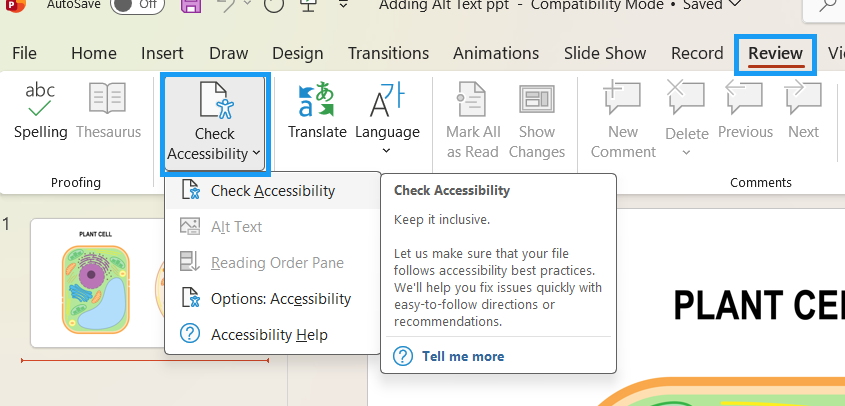
To check accessibility in PowerPoint:
- Open your presentation in PowerPoint.
- Select the Review tab.
- Select Check Accessibility.
- Review the results panel and make suggested changes.
How to Include PowerPoints in Canvas
- Use descriptive file names when uploading presentations.
- Organize presentations within modules.
- Check links to ensure they work correctly.
- Whenever possible, share the original accessible PowerPoint file or provide content directly in Canvas instead of converting it to PDF.
- If a PDF version is necessary, use Save As PDF or Export to PDF (not Print to PDF) to better preserve headings, reading order, hyperlinks, and document structure.
- After exporting, review the PDF for accessibility, as exporting alone does not guarantee the PDF is fully accessible.
Need Help?
- Email University Information Technology (UIT) for Microsoft and Adobe accessibility tools
- Visit the Center for Faculty Excellence (CFE) Webpage for guidance on developing accessible course materials and professional development for inclusive teaching and learning
- Email the ECAT Team in Academic Technology and Outreach (ATO) for assistance with accessibility in Canvas using YuJa Panorama