

Fix PDF Accessibility Issues
Adobe Acrobat or YuJa Panorama identified an accessibility issue in your PDF? Use this guide to find the problem and learn how to correct it.
Where to Start
Not sure how to fix your PDF? Follow these steps to find the best place to begin.
Do you have the original Word document?
If yes, make your corrections in Word and export a new accessible PDF. See our Creating Accessible PDFs for Canvas guide.
If not, continue to Step 2.
Can you highlight individual words in the PDF?
Open the PDF and try selecting a sentence. If you cannot highlight individual words, the PDF may be a scanned image. Use YuJa Panorama's OCR tool or Adobe Acrobat Pro's Scan & OCR feature to recognize the text.
Then continue to Step 3.
Check your PDF in Adobe Acrobat Pro
Open the PDF and select All tools → Prepare for accessibility → Check for accessibility. Review the results to see which issues need correction.
Fix the issues and check again
Use the troubleshooting sections below for instructions and Adobe tutorials. If the document has extensive accessibility problems, recreating it in Word may be easier than repairing the PDF.
Note: OCR recognizes text in scanned documents but does not automatically correct headings, tables, reading order, or other accessibility issues.
What Issue Are You Trying to Fix?
What it means: A title or section heading may look like a heading but is not identified as one in the PDF structure. Document headings are different from table headers.
Best option: Fix it in Word
- Open the original document and select the title or section heading.
- Choose Home → Styles and apply Heading 1, Heading 2, or another appropriate level.
- Run Review → Check Accessibility, then export as a tagged PDF using Save As or Export (not Print to PDF).
If you must correct the PDF in Acrobat Pro
- Save a working copy of the PDF.
- Open All tools → Prepare for accessibility → Fix reading order (tool names may vary by version).
- Select only the heading text on the page and choose the appropriate heading level, such as Heading 1.
- Open the Tags panel and confirm the heading appears as an
<H1>,<H2>, etc., in the correct reading order. - If the heading is incorrectly nested inside a table or other content, consider recreating the document rather than repeatedly changing tags.
- Run the accessibility checker again and review the document manually.
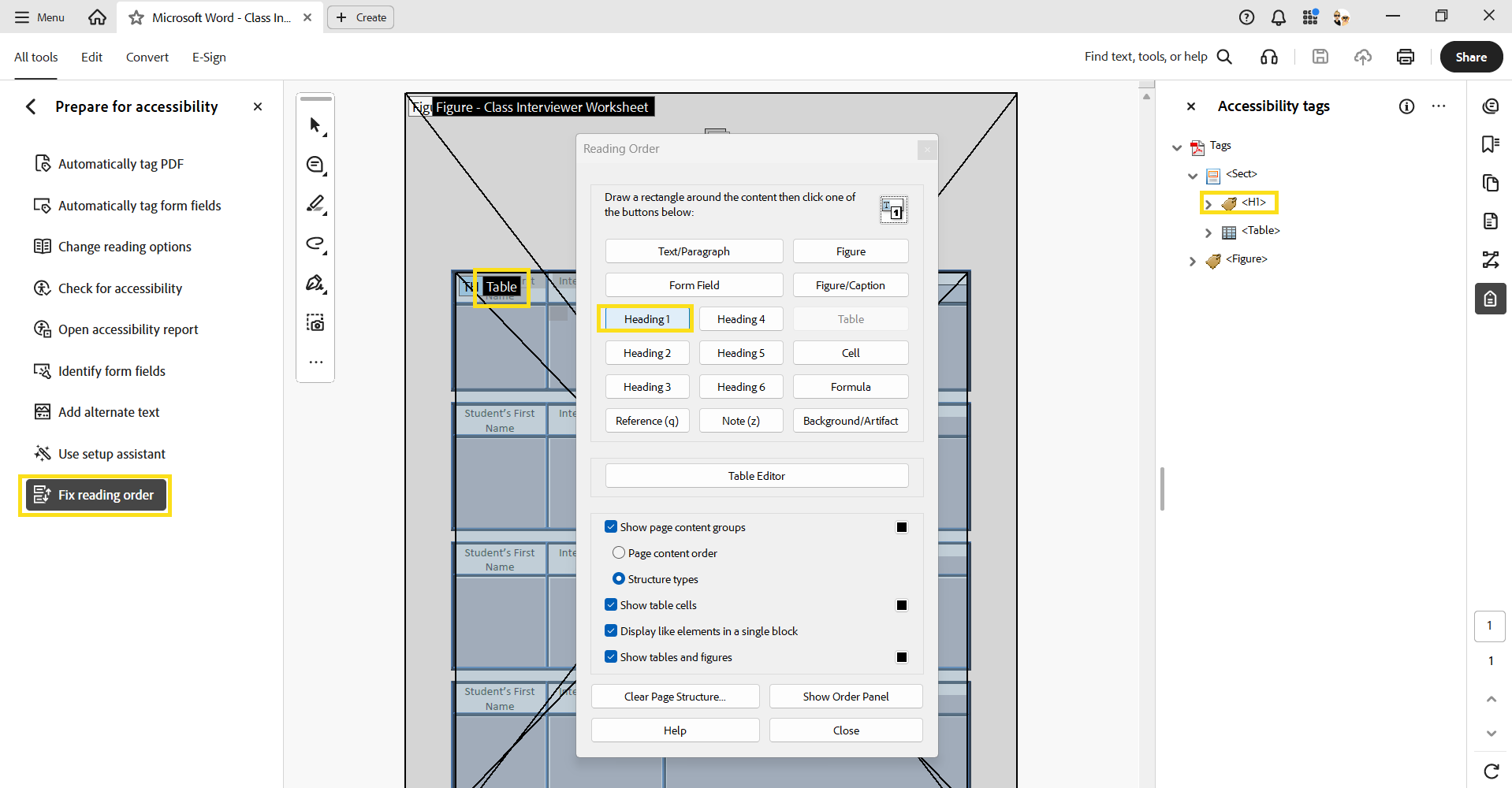
Adobe video tutorial: The Basics of Tagging — Learn how PDF tags identify document content.
What it means: Screen readers may not be able to associate table data with the appropriate column or row labels.
| Student's first name | Interview question | Interview answer |
|---|---|---|
| Alex | What is your favorite subject? | Science |
Best option: Fix the source document
- Use a simple table with a clearly identified header row. Avoid unnecessary merged or split cells.
- In Word, select the header row and review the table's header-row settings, including Table Layout → Properties → Row → Repeat as header row at the top of each page when applicable.
- Run Word's Accessibility Checker, export a tagged PDF, and verify the PDF's header tags. Word's visual Header Row styling alone does not guarantee accessible PDF table headers.
If you must correct the PDF in Acrobat Pro
- Save a working copy and open Prepare for accessibility → Fix reading order.
- Open Table Editor for the affected table and inspect which cells are designated as headers versus data cells.
- Correct incorrectly classified cells. In the Tags panel, verify the structure uses
<Table>,<TR>,<TH>(header), and<TD>(data) appropriately. - Where necessary, review header cell properties and associations, such as column or
row scope. Changing a cell to
<TH>does not necessarily resolve every header issue. - Recheck table regularity, headers, and reading order. Confirm that each table is tagged separately and correctly.
Adobe video tutorial: Complex Tables — Demonstrates working with PDF table structures.
When to stop: If tables are merged together in the tag tree, content is nested incorrectly, or each fix creates new errors, recreating the document in Word or another accessible format may be more efficient.
What it means: The order in which assistive technology encounters text, tables, and images may not match the intended reading sequence.
- If the original document is available, correct its layout and export a new tagged PDF.
- Otherwise, in Acrobat Pro, open Fix reading order and inspect how page content is identified.
- Review the Tags panel and check the logical sequence of headings, paragraphs, tables, and other content.
- Correct simple issues carefully. For extensive or confusing structural errors, consider recreating the document in an accessible format.
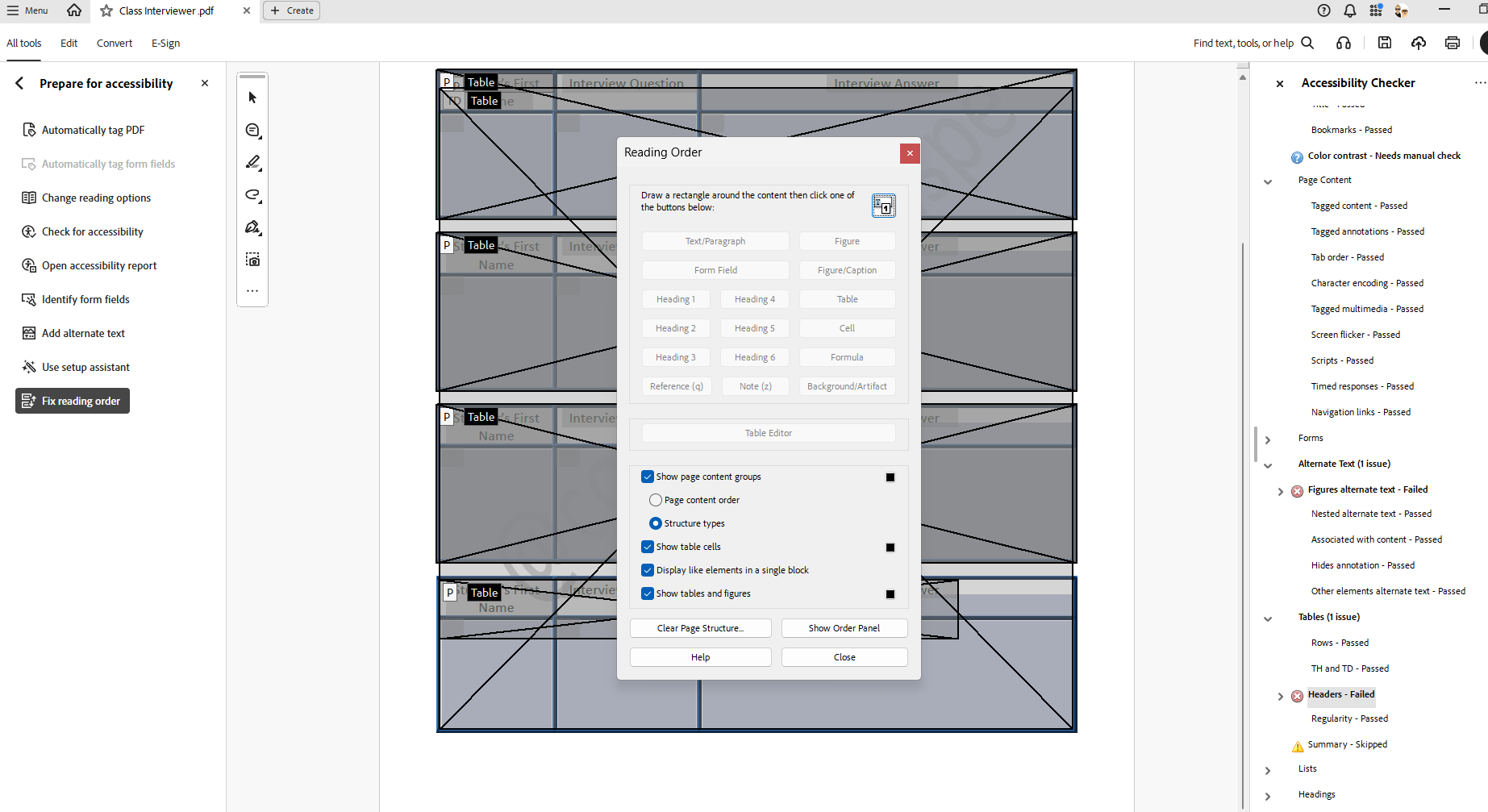
Adobe resource: Reading Order Tool for PDFs — Instructions for identifying and adjusting reading order in Acrobat.
What it means: The PDF's underlying structure does not correctly describe its contents. A document can look fine visually and still have incorrect tags.
- Check for an accessible original document first.
- In Acrobat Pro, open the Tags panel and review whether the visible content has appropriate structural tags.
- Look for missing text, content incorrectly marked as a figure, or headings and tables nested in the wrong places.
- For simple errors, use Acrobat's accessibility tools and recheck. For extensive tag-tree repairs, consider recreating the document in Word or another accessible format.
Adobe video tutorial: The Basics of Tagging — Introduction to PDF tags and document structure.
After Making Corrections
- Save the corrected PDF.
- Rerun Adobe Acrobat's Accessibility Checker.
- Upload the corrected document to Canvas, replacing the inaccessible version where appropriate.
- Review the updated YuJa Panorama accessibility report.
- Manually verify important elements such as reading order and table structure.
Need Additional Help?
PDF accessibility corrections can be challenging, particularly when working with tables, reading order, and document tags. If you are unable to correct the issues in Adobe Acrobat Pro, consider returning to the original document or recreating the content in a more accessible format.
For questions about Canvas or YuJa Panorama accessibility reports, contact the ECAT Team in Academic Technology.. ECAT can provide guidance and point you toward resources, but instructors are responsible for correcting their course materials.
For technical assistance with Adobe Acrobat Pro, visit Adobe Admin Contact..